

Download BackupLife – simple cloud backup, file versioning, secure online storage
Overview
BackupLife is a lightweight cloud‑backup solution created by BackupLife s.r.o. for Windows users who need a “set‑and‑forget” way to keep personal and work files safe. The app works quietly in the background, detecting new or modified files the moment they appear on your hard drive and instantly uploading them to a secure online vault. Unlike heavyweight backup suites that require you to schedule jobs, build image files, or manage multiple storage destinations, BackupLife focuses on the essentials: continuous, versioned protection for the documents, photos, spreadsheets, and small media files that matter most.
What makes BackupLife stand out is its real‑time sync engine combined with automatic version tracking. Every time you save a change, the software creates a new version in the cloud, allowing you to roll back to a previous state with just a few clicks. This is especially valuable for freelancers, students, and small teams who often juggle multiple drafts of the same file.
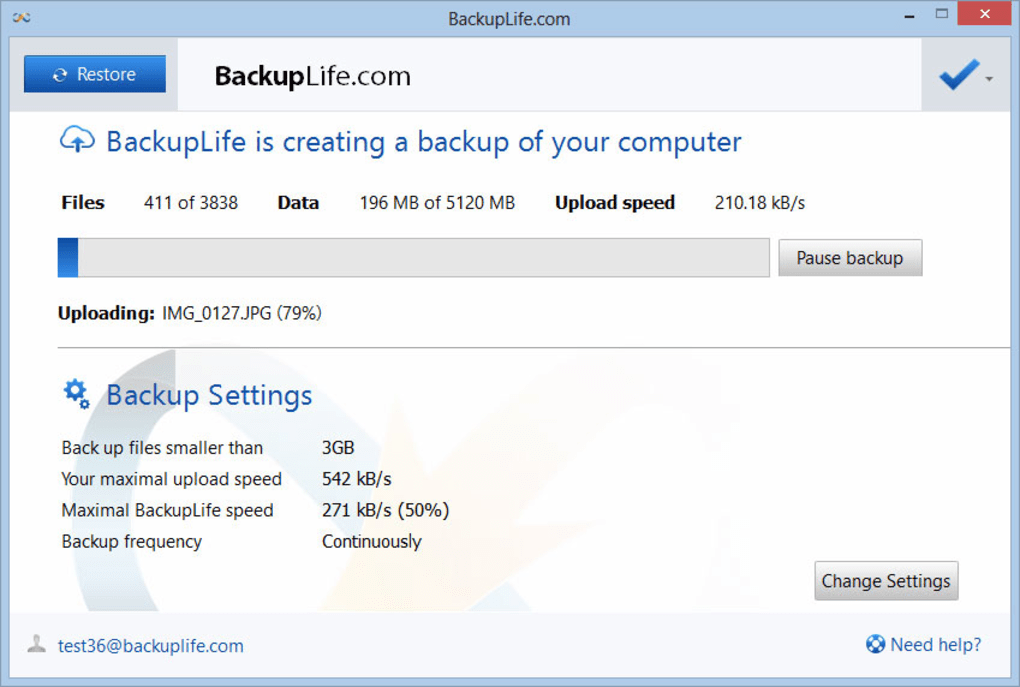
The interface is intentionally minimalistic – a single dashboard shows recent activity, storage usage, and a quick “restore” button. There are no complex rule sets, no mandatory scheduling dialogs, and no intrusive notifications that interrupt your workflow.
Security is another cornerstone of the product.
All data is transferred over TLS 1.3, and files are stored encrypted at rest using AES‑256. BackupLife does not require you to manage encryption keys; the service handles it automatically, which reduces the chance of human error. While the tool does not provide full‑system imaging, offline backups, or advanced compression, it delivers a reliable, always‑on safety net for the everyday user who wants peace of mind without the learning curve of enterprise‑grade software.
Key Features
- Real‑time file detection and automatic upload to secure cloud storage.
- Unlimited version history for each backed‑up file, enabling easy rollback.
- Background operation with minimal CPU and RAM footprint.
- End‑to‑end encryption (TLS 1.3 for transit, AES‑256 for rest).
- Clean, single‑pane UI that displays recent sync activity and storage usage.
- One‑click restoration from any previous version directly within the app.
- Automatic handling of common file types – documents, spreadsheets, images, PDFs.
- Free tier with 5 GB of cloud storage; paid upgrades available for larger needs.
Installation & Usage Instructions
Getting BackupLife up and running is intentionally straightforward. Follow these steps to secure your files in under ten minutes:
1. Download the installer
Visit the official BackupLife website and click the “Download for Windows” button.
The installer is a small .exe file (≈ 12 MB) that works on Windows 10, 11, and the later updates of Windows 8.1.
2. Run the installer
Double‑click the downloaded file.
The installer uses a wizard‑style UI that asks for just two pieces of information: your preferred installation folder (the default location is fine for most users) and whether you want a desktop shortcut. Click “Install” and wait for the progress bar to finish – the process typically takes less than a minute on a modern PC.
3.
Create or sign in to your BackupLife account
After installation, the app launches automatically and prompts you to either create a new account or sign in with an existing one. Account creation requires an email address and a strong password; you will receive a verification link to confirm ownership. Once logged in, the app connects to your personal cloud vault.
4. Choose folders to protect
The first time you open BackupLife, a simple “Select folders” screen appears. Click “Add folder” and browse to the directories you want to protect – common choices include “Documents,” “Pictures,” and any project folders you maintain.
You can add as many folders as you like; the app will monitor each for changes.
5. Let BackupLife do the work
With folders selected, the software starts monitoring them instantly.
Any new file or modification triggers an automatic upload. You can view the sync status in the main dashboard, which shows a green checkmark for successful uploads and a red warning if a file fails to sync (usually due to network issues). The dashboard also displays the amount of cloud storage used and the date of the latest backup.
6. Restoring files
To recover a file, locate it in the BackupLife interface, click the small clock icon next to the file name, and choose the version you want to restore. The selected version will be downloaded back to its original location, overwriting the current copy if you confirm.
For bulk restores, you can select multiple files and click “Restore Selected.”
7. Managing storage and upgrades
If you approach the 5 GB free limit, the “Settings” panel offers a one‑click upgrade to a paid plan (starting at $4.99 / month for 100 GB). Upgrades are processed through a secure payment gateway, and the additional space becomes available immediately.
Overall, the entire workflow is designed to keep the user out of the way. After the initial folder selection, you can close the app; it will continue to run silently in the system tray, ensuring that every change is captured without manual intervention.
Compatibility, Pros & Cons
BackupLife is built exclusively for the Windows desktop environment. It supports Windows 10 (both 64‑bit and 32‑bit builds), Windows 11, and the later service packs of Windows 8.1. The developers have not released native macOS, Linux, Android, or iOS clients, but the cloud storage can be accessed through a web portal from any modern browser, allowing occasional retrieval of files on non‑Windows devices.
Pros
- Zero‑configuration setup – start protecting files after the first launch.
- Real‑time sync ensures that the latest version is always stored online.
- Automatic versioning eliminates the need for manual snapshots.
- Lightweight background operation; negligible impact on system performance.
- Strong encryption both in transit (TLS 1.3) and at rest (AES‑256).
- Free tier sufficient for basic personal use.
Cons
- No native macOS, Linux, Android, or iOS applications.
- Lacks advanced features such as full‑system imaging, differential backups, or offline storage.
- Storage limit on the free plan may be restrictive for media‑heavy users.
- File‑type filtering is basic; specialized file formats (e.g., CAD files) are not automatically recognized.
- Support is limited to email tickets; no live chat or phone support.
Frequently Asked Questions
Is BackupLife really free to use?
BackupLife offers a free tier that includes 5 GB of encrypted cloud storage. This is sufficient for most personal users who need to protect documents, spreadsheets, and a modest collection of photos. If you need more space, paid plans start at $4.99 per month for 100 GB.How does versioning work and how many versions are kept?
Every time a file changes, BackupLife creates a new version in the cloud while retaining the previous one. The service keeps an unlimited number of versions for each file, limited only by the total storage quota of your account. Older versions can be manually deleted to free up space if needed.Can I restore files to a different computer?
Yes. By signing into your BackupLife account on another Windows PC, you can browse your cloud vault and restore any file or version to the new machine. The web portal also allows you to download individual files directly, making cross‑device recovery possible.Is my data safe during transmission?
All data transferred between your PC and the BackupLife servers is encrypted using TLS 1.3, the latest industry‑standard protocol for secure internet communication. At rest, files are encrypted with AES‑256, ensuring that even if the storage infrastructure were compromised, the data would remain unreadable.What happens if my internet connection drops?
BackupLife detects connectivity issues automatically. When the connection is lost, the app queues changes locally and resumes uploading as soon as the network is restored. You can view pending uploads in the dashboard, and no data is lost during temporary outages.Conclusion & Call to Action
In a world where data loss can happen in an instant—whether through accidental deletion, hardware failure, or ransomware—having a reliable, low‑maintenance backup solution is no longer optional. BackupLife delivers exactly that: a simple, real‑time cloud backup tool that runs silently in the background, protects your most important files, and gives you the confidence of unlimited version history. While it does not replace full‑scale backup suites for enterprises, its focus on ease of use, strong encryption, and automatic syncing makes it an excellent choice for individuals, freelancers, and small teams who want to secure their work without spending hours configuring policies.
If you value a hassle‑free experience and are looking for a free way to start protecting your files today, click the button below to download BackupLife and set up your first cloud backup in minutes. For users who need more storage or want priority support, consider upgrading to a paid plan—your data’s safety is worth the small investment.







